YouTube to MP4 Converter
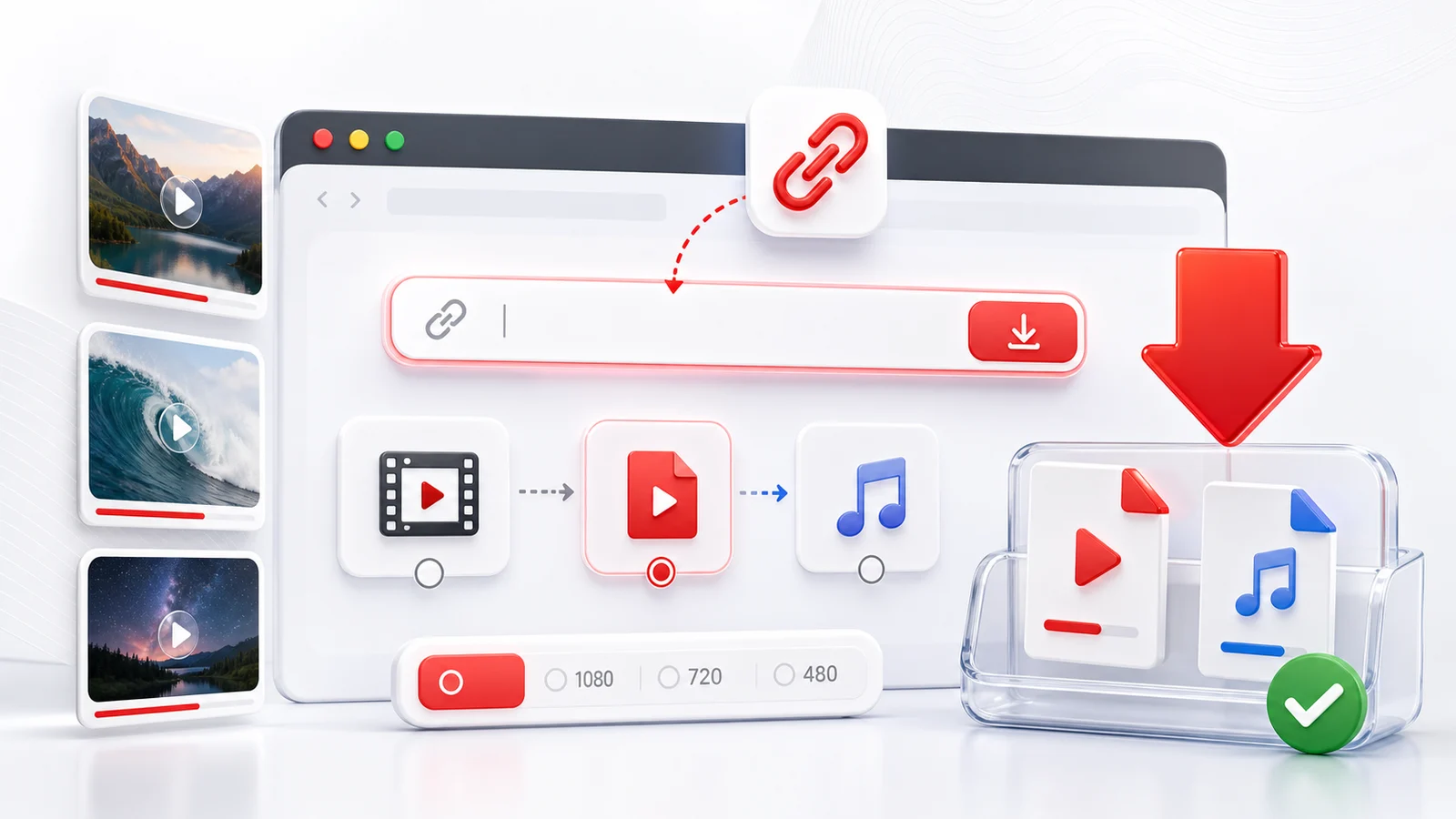
Use Any4K as a YouTube to MP4 converter when you want a video file that works almost anywhere. MP4 is the most practical format for phones, laptops, tablets, editing tools, and smart TVs, which makes it a good default for offline viewing.
How To Convert YouTube To MP4
- Copy the YouTube video URL from your browser or the YouTube app.
- Paste the link into the Any4K downloader above.
- Wait for Any4K to read the public video information.
- Choose an MP4 option such as 720p, 1080p, 4K, or the best available quality.
- Save the file to your device.
The exact quality list depends on the original YouTube video. A video uploaded only in 720p cannot become a real 4K video after conversion.
When MP4 Is The Right Format
Choose MP4 when you want the broadest compatibility. It is easier to share, store, and play than many other video container formats. MP4 is also the safer choice if you plan to move the file between iPhone, Android, Windows, macOS, or cloud storage.
If you only need the audio track, use the YouTube to MP3 page instead. If you are downloading Shorts, use the Shorts-focused page for a cleaner mobile-first workflow.
Quality Notes
Higher resolution usually means larger files. For short clips, 4K is often fine. For long videos, 1080p can be a better balance between quality and storage. When a video includes high-frame-rate formats, choose the option that matches your playback device.
Use downloads responsibly and only save videos you have the right to use.
Why MP4 Is the Right Default Format
MP4 is short for MPEG-4 Part 14, a container format defined by the Moving Picture Experts Group. A container is essentially a wrapper that holds one or more video tracks, audio tracks, and metadata such as chapters or subtitles. When most people say "MP4," they mean a container that carries H.264 (AVC) video and AAC audio. That specific combination is the closest thing the modern web has to a universal video format.
The reason MP4 is the practical default is that nearly every device and every piece of playback software ships with hardware or software support for H.264 plus AAC. iOS and iPadOS play MP4 natively in Safari, Photos, and Files. Android plays MP4 across the stock player, Google Photos, and most third-party players. Windows 10 and 11 include the codecs by default in Films and TV, and macOS plays them in QuickTime. Smart TVs from Samsung, LG, Sony, and others list MP4 as a supported file when you plug in a USB drive. Game consoles can read MP4 over DLNA or USB. Video editors from iMovie and CapCut up to Premiere Pro and DaVinci Resolve all accept MP4 without extra steps.
Compare that to the main alternatives. WebM is smaller at a similar quality because it uses VP9 or AV1 with Opus audio, but iOS support for WebM has historically been limited and inconsistent across versions, which still trips users up. MKV (Matroska) is a flexible container that handles many tracks and subtitle formats, but mobile players often refuse it and you usually need VLC or a remux step. MOV is Apple's own container and works well across Apple devices, but Windows users sometimes need transcoding before MOV files behave reliably in non-Apple editors and players. None of these formats is wrong, but MP4 is the format you can hand to anyone without asking what device they use.
MP4 Quality Tiers Explained
The quality option you pick determines file size, perceived sharpness, and which devices can play the result smoothly. The numbers below are typical ranges for H.264 MP4 at standard YouTube frame rates and will vary with motion, bitrate, and frame rate.
- 360p MP4 is roughly 4 to 8 MB per minute. It is useful for slow connections, quick previews, or saving lecture-style talking-head videos where pixel detail does not matter. Plays on every device, including very old phones.
- 480p MP4 is roughly 8 to 15 MB per minute. A reasonable choice for messaging apps that compress aggressively anyway, or for small mobile screens. Universally compatible.
- 720p MP4 is roughly 15 to 35 MB per minute. This is the lowest resolution that still feels acceptable on a modern phone or laptop screen. Excellent compatibility, including older smart TVs.
- 1080p MP4 is roughly 35 to 90 MB per minute. The recommended default. Sharp on phones, tablets, laptops, and most TVs, and still plays on hardware that is several years old.
- 1440p MP4 (2K) is roughly 90 to 180 MB per minute. A good middle ground for high-DPI laptop screens and 1440p monitors. Some older phones and TVs may decode it in software, which uses more battery.
- 2160p MP4 (4K) is roughly 180 to 450 MB per minute. Best for 4K TVs and modern desktop monitors. Requires a recent CPU or hardware decoder for smooth playback.
- 4320p MP4 (8K) is roughly 600 MB to over 1 GB per minute. Only worth saving when the source is genuinely 8K and you have an 8K screen or plan to crop and re-edit. Many devices cannot play 8K MP4 at full frame rate.
If you are not sure which tier to pick, choose 1080p MP4. It is the format that almost never fails on the destination device.
MP4 With H.264 vs H.265 vs AV1
The MP4 container can hold different video codecs, and modern YouTube downloads sometimes expose more than one. The codec determines how the video is compressed, not what the file is called.
H.264 (AVC) is the oldest of the three and the most compatible. Every device built in the last decade has hardware-accelerated H.264 decoding. Files are larger than newer codecs at the same visual quality, but the playback story is simple: it works. Pick H.264 MP4 when you plan to share the file, edit it, or play it on hardware you do not control.
H.265 (HEVC) is roughly 40 to 50 percent smaller than H.264 at similar quality. Recent iPhones, recent Android phones, Apple Silicon Macs, and modern smart TVs decode H.265 in hardware. Older Windows laptops, older Android devices, and many web browsers do not. Pick H.265 MP4 when storage is tight and you know the destination device supports it.
AV1 is the newest codec, royalty-free, and produces the smallest files at the same quality. Hardware decoding is available on recent GPUs, recent Apple Silicon, and the latest mobile chips, but coverage is still uneven. Software decoding works but uses noticeable CPU. Pick AV1 only when you are confident your playback device handles it; otherwise the file will be small but choppy.
Common MP4 Issues After Download
A few specific problems show up often enough to be worth listing.
- Video plays without sound. YouTube sometimes ships video and audio as separate streams. Any4K muxes them back together into a single MP4 so this should not happen with our downloads, but if it does, re-run the conversion or open the file in VLC, which is more forgiving than the system player.
- Playback skips on older devices. This is almost always a codec mismatch. The MP4 is probably using H.265 or AV1 and the device is decoding in software. Re-download in an H.264 MP4 option and the stutter usually disappears.
- The file is enormous. A 30-minute 4K clip can easily exceed 5 GB. Either step down one resolution tier (4K to 1080p is the largest single drop) or pick an H.265 MP4 option if the destination device supports it.
- Windows Media Player rejects the file. The classic Windows Media Player does not include every modern codec by default. Install the free K-Lite Codec Pack, or simpler, install VLC and set it as the default player for MP4 files.
Editing MP4 Files After Download
If you plan to edit the downloaded video, the codec choice matters more than the resolution. H.264 MP4 is the editor-friendly format. iMovie accepts H.264 MP4 directly on iOS and macOS. CapCut on phone and desktop imports H.264 MP4 without transcoding. DaVinci Resolve and Adobe Premiere Pro both prefer H.264 MP4 for fast scrubbing and reliable timeline performance, though both can also work with H.265 if your hardware supports it.
If you grab an H.265 or AV1 MP4 and the timeline feels sluggish, the fix is to transcode the file to an H.264 MP4 (or to your editor's optimized media format) before cutting. Most editors offer a "create proxy" or "optimize media" option that does this automatically. When in doubt, download the H.264 MP4 in the first place and skip the extra step.
Frequently Asked Questions
What is the best YouTube to MP4 quality?
1080p MP4 is the best all-around choice for compatibility. Choose 4K or 8K if the original video supports it and you want a larger high-resolution file.
Does YouTube to MP4 work on iPhone?
Yes. Any4K runs in the browser, so you can paste a YouTube URL from Safari or another mobile browser and save the available MP4 file.
Why is there no MP4 option for my video?
Some videos expose formats differently, or the source platform may block external access. Try another quality option if MP4 is not listed.