YouTube Video Downloader
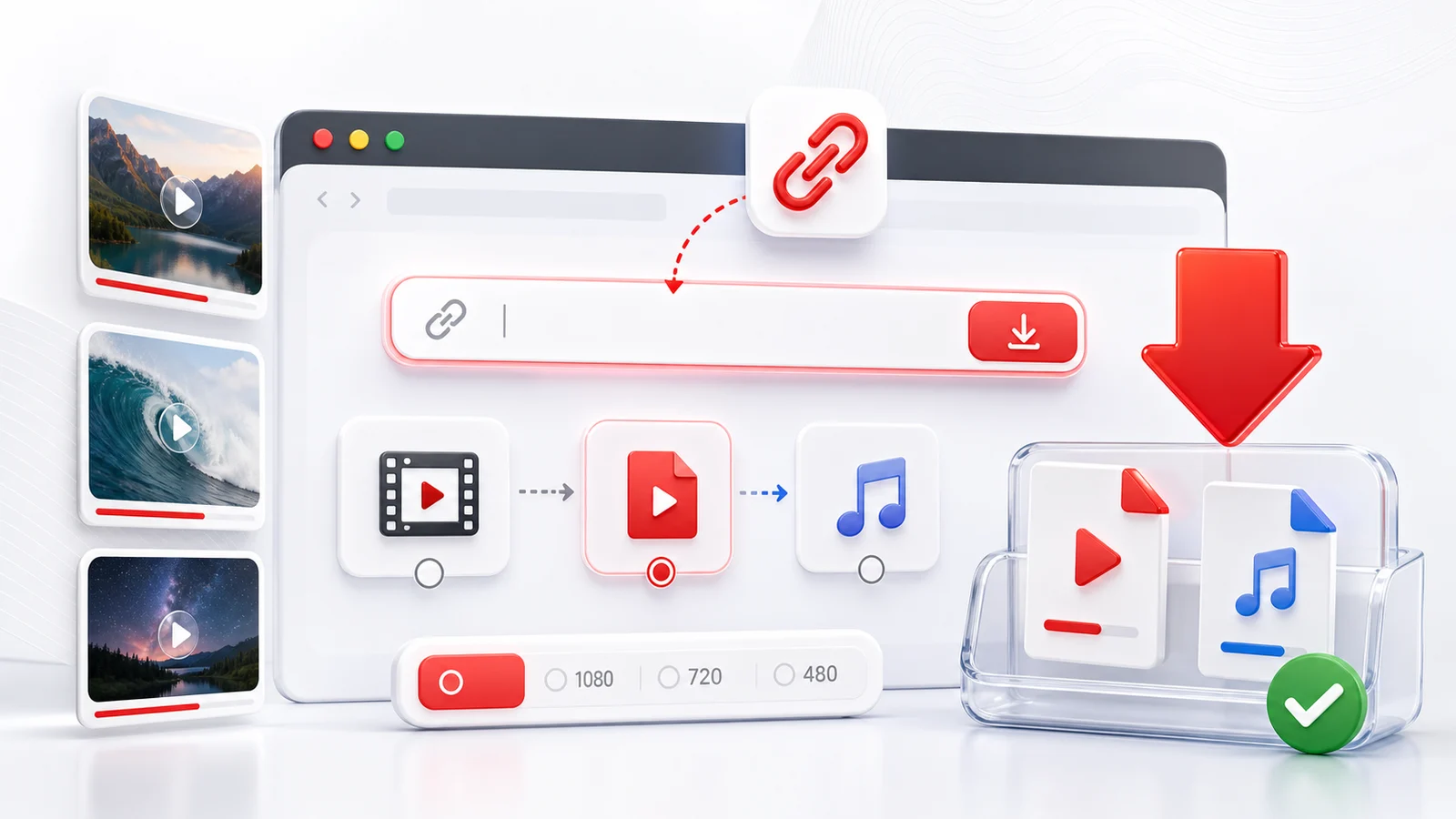
Any4K is an online YouTube video downloader built for people who want a fast way to save a public YouTube video in a practical format. Paste the YouTube URL into the downloader, wait for the video information to load, then choose the quality and format you need.
What This YouTube Downloader Is Best For
Use this page when you already have a YouTube link and want a direct download workflow:
- Save public YouTube videos as MP4 when a video file is available.
- Choose HD, 1080p, 4K, or 8K options when the source video supports them.
- Extract audio formats when you only need the sound.
- Download from a browser on desktop, iPhone, iPad, Android, or tablet.
- Avoid installing a desktop downloader for a one-off video.
Any4K focuses on the practical download moment: paste the link, inspect the available formats, then save the file that matches your device and use case.
Supported YouTube Links
Any4K can process many common public YouTube URL formats, including regular watch links, shared youtu.be links, Shorts links, and playlist links. If a link points to a playlist, Any4K may route you to a playlist download page so you can choose individual videos.
Some YouTube pages cannot be downloaded through a browser-based tool. Examples include private videos, removed videos, livestreams that are still live, age-restricted content, or videos where the platform blocks external access.
Best Quality Settings
For most downloads, MP4 at 1080p is the safest choice because it works on almost every phone, computer, and TV. Choose 4K or 8K when you want the highest visual quality and your device has enough storage. Choose audio-only formats when you are saving a lecture, podcast, music track, or spoken clip for offline listening.
If you do not see a 4K option, it usually means the original YouTube video was not uploaded or exposed in that quality.
Responsible Use
Only download videos when you have the right to save or use them. Respect YouTube's terms, creator rights, copyright law, and local rules. Any4K is intended for personal, permitted, and lawful use cases such as saving your own content, public-domain material, or videos where downloads are allowed.
Quality and Format Decision Guide
Picking a resolution is mostly a question of where you will watch the video and how much storage you can spare. For phones and tablets, 1080p is usually indistinguishable from 4K at normal viewing distances, and the file is roughly a quarter of the size. For a laptop or external monitor up to 27 inches, 1440p hits a useful middle ground when it is offered. Choose 4K when you plan to watch on a large TV, project the video, or keep an archival copy of source material you may re-edit later. Choose 8K only if your display supports it and you specifically need that resolution, since the files are large and the perceived gain over 4K is small on most screens.
Container choice matters less than people assume. MP4 with H.264 is the universal default and plays on every modern phone, browser, smart TV, and editor without extra codecs. WebM (VP9 or AV1) tends to be smaller at the same visual quality and is well suited to web playback, but older devices and some editing apps still struggle with it. MKV is flexible and good for archival, though iOS and Safari do not play it natively. If you are unsure, pick MP4. If you care about saving disk space and you only plan to watch the file on a recent computer or phone, WebM is reasonable.
Mobile vs Desktop: Where to Run the Download
Any4K runs entirely in the browser, so no install is required on any platform. The save location and a few small behaviors differ by device.
On iPhone and iPad, Safari is the most predictable browser to use. After you confirm the download, iOS shows a prompt and saves the file to the Files app, typically under Downloads on your iCloud Drive or local drive. From there you can move it to Photos, AirDrop it, or open it in another app. Chrome on iOS works similarly but routes through its own download manager first.
On Android, most browsers (Chrome, Firefox, Samsung Internet) save the file to the device's Downloads folder, accessible through the Files or My Files app. You can usually tap the notification that appears when the download finishes to open the file directly.
On desktop, Chrome, Firefox, Edge, and Safari all behave the same way: the file lands in the configured downloads directory. If you are downloading a long 4K or 8K file, leave the tab open and the screen awake until the save completes. Background tabs are usually fine, but some browsers throttle them.
When Downloads Fail and How to Diagnose
A failed download almost always traces back to the source video, not the tool. Five common cases:
- Private video. The uploader restricted access and the URL is not reachable without sign-in.
- Deleted video. The uploader removed it, or YouTube took it down for a policy reason. The page returns an error.
- Livestream still live. The stream is in progress and a finished file does not yet exist. Wait until the broadcast ends and YouTube finishes processing the VOD.
- Age-restricted. YouTube requires an age-verified sign-in to view the video, so external tools cannot fetch it.
- Region-blocked. The uploader or rights-holder limited the video to specific countries.
A short two-step diagnostic usually clarifies what is happening. First, open the URL in a private or incognito window where you are not signed in. If YouTube itself will not play the video there, it is not publicly accessible and no browser-based downloader can reach it either. Second, re-copy the share URL directly from YouTube's Share menu rather than the address bar. That removes tracking parameters, playlist IDs, and timestamp anchors that occasionally confuse parsers. If both checks pass and the download still fails, try again a few minutes later, since temporary fetch errors do happen.
Using Downloads Responsibly
The simplest rule is that downloading is for legitimate personal use: saving content you have a reasonable right to keep offline. That includes your own uploads, videos released under Creative Commons, public-domain footage, and material the creator has explicitly said is free to download. Government and agency content is often a safe bet — NASA's video library, most U.S. federal agency footage, and many public broadcasters publish work in the public domain or under permissive licenses. Many educators and independent creators also mark their work CC BY or CC BY-SA on YouTube, and you can check by clicking Show more under the video description.
Fair use exists in some jurisdictions and covers narrow situations like commentary, criticism, news reporting, teaching, and research, but it is not a blanket license. If you plan to republish, monetize, or redistribute a download, get permission from the rights-holder or rely on content you know is properly licensed. Respect creators: a download is not the same as a redistribution right. Any4K provides the mechanism; the responsibility for how a file is used sits with the person who saved it. When in doubt, ask the creator or pick a different source.
Frequently Asked Questions
Can I download YouTube videos in 4K?
Yes. If the original YouTube video has a 4K or higher quality stream available, Any4K can show high-resolution download options such as 1080p, 4K, or 8K.
Do I need to install a YouTube downloader app?
No. Any4K works in your browser, so you can paste a YouTube link and download from desktop, iPhone, Android, or tablet without installing software.
Can Any4K download private YouTube videos?
No. Any4K can only process videos that are publicly accessible. Private videos, members-only videos, and restricted videos may not be available.