YouTube to MP3 Converter
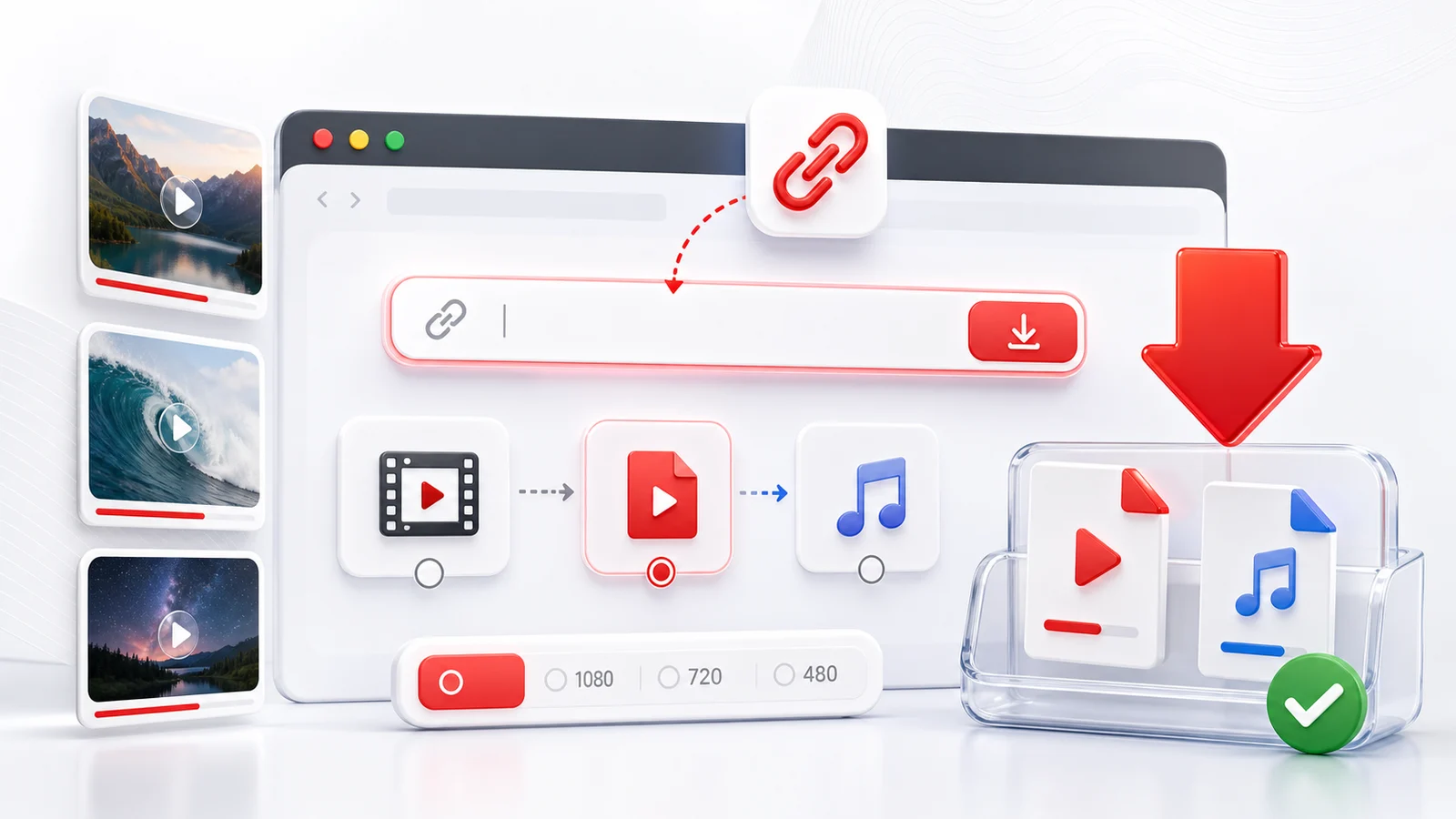
Any4K can help you convert a public YouTube video into an audio file when you only need the sound. This is useful for lectures, interviews, podcasts, public-domain material, your own uploads, and other videos where saving the audio is permitted.
How To Convert YouTube To MP3
Copy the YouTube URL, paste it into the downloader above, and wait for Any4K to load the available formats. If audio extraction is available, choose the audio format that works best for your device.
MP3 is popular because it plays almost everywhere. Some videos may expose additional audio formats, depending on how the source file is stored and what the platform makes available.
YouTube Audio Download Use Cases
Audio-only downloads are useful when the video track is not important. They can save storage, make long talks easier to replay, and work well for offline listening. For visual content such as tutorials, screen recordings, or product demos, use MP4 instead.
Why Audio Options May Be Missing
If audio options do not appear, the video may be private, restricted, removed, still processing, or blocked from external tools. Try another public video URL to confirm whether the issue is video-specific.
Use this tool responsibly and only extract audio when you have permission or a lawful reason to do so.
MP3 Bitrate Decision Guide
The bitrate you choose controls how much detail the MP3 preserves and how large the file becomes. MP3 is a lossy format, so a higher bitrate keeps more of the original audio at the cost of disk space. The numbers below are approximate for constant bitrate (CBR) encoding and one minute of audio.
- 64 kbps — around 0.5 MB per minute. Acceptable for spoken word in noisy environments, voicemail-style recordings, or very long talks where storage is tight. Music sounds noticeably thin at this rate.
- 96 kbps — around 0.7 MB per minute. A reasonable floor for clear speech, audiobook-style narration, and casual podcasts that do not feature complex music beds.
- 128 kbps — around 1 MB per minute. The classic baseline for podcasts and general listening. Voices sound natural and music is acceptable, though discerning listeners may hear compression artifacts on cymbals and reverb tails.
- 192 kbps — around 1.4 MB per minute. A balanced setting for mixed content where music quality matters but storage is still a concern. Many streaming services landed on similar rates for years.
- 256 kbps — around 1.9 MB per minute. A common target for music libraries on phones and laptops. The drop from the source is usually inaudible on consumer headphones.
- 320 kbps — around 2.4 MB per minute. The maximum standard MP3 bitrate. Recommended for music you plan to keep, mastering references, or any source you may transcode again later. For archival use, a 320 kbps file or a variable bitrate (VBR) encoding at the equivalent quality level is the safest choice.
If you do not know what to pick, 128 kbps is fine for talk content and 256 kbps is a sensible default for music.
MP3 vs Other Audio Formats
MP3 is not the only option, and in many cases it is not the most efficient one. The tradeoffs come down to quality per kilobyte, device support, and whether the format is lossy or lossless.
- MP3 is the universal default. Every phone, car stereo, smart speaker, and media player from the last twenty years can play it. Pick MP3 when compatibility matters more than file size or peak fidelity.
- AAC / M4A is the successor that most modern platforms use. At the same bitrate it typically sounds better than MP3, especially below 192 kbps. Support is broad on Apple devices, Android, and modern browsers, but some older hardware (cheap MP3 players, legacy car stereos) cannot decode it.
- Opus is the most efficient mainstream codec. At 96 kbps Opus often sounds closer to the source than MP3 at 192 kbps. It is the codec YouTube itself uses for many audio streams. The catch is device support: most modern phones, browsers, and desktop players handle Opus, but standalone hardware players are inconsistent.
- WAV is uncompressed PCM. It is lossless, large (about 10 MB per minute at CD quality), and the safest format for editing or further processing. Use WAV when you plan to import the audio into a DAW or trimming tool and care about the underlying samples.
- FLAC is lossless but compressed, usually around 60 to 70 percent of the WAV size. FLAC is ideal for archiving music collections where you want bit-perfect copies without the storage cost of WAV. Compatibility is good on desktop players and improving on mobile, but car stereos and older devices may not decode it.
A simple rule: if you are sending the file to many different devices, choose MP3. If the destination is a modern phone or computer and you care about quality per megabyte, choose AAC or Opus. If you are archiving, choose FLAC.
What You Lose Going From YouTube Source to MP3
YouTube does not store its audio as MP3. The platform serves audio in Opus (in WebM containers) or AAC (in MP4 containers), depending on the stream. When you convert that source to MP3, you are doing a lossy-to-lossy transcode, which is sometimes called generation loss. The decoder unpacks the Opus or AAC bitstream into PCM samples, and the MP3 encoder then throws away a different set of details to fit its own model of what the ear can hear.
In practice, the loss is small when you pick a high enough MP3 bitrate. A 256 or 320 kbps MP3 made from a 128 kbps AAC source will be functionally indistinguishable from the source to most listeners. A 96 kbps MP3 made from the same source will sound noticeably worse than the original because the MP3 encoder has less headroom to work with.
If your player supports it, keeping the audio in its native format avoids this step entirely. Many YouTube downloads can be saved as M4A (AAC) directly, which preserves the source bitstream without re-encoding. Choose MP3 when you need compatibility, and choose AAC or Opus when you want to preserve quality.
Common Use Cases for YouTube to MP3
Audio extraction tends to come up in the same handful of scenarios.
- Language learning. Recorded interviews, news bulletins, and graded readers are easier to repeat on a phone when they are saved as plain audio. Offline listening on commutes and walks is the main motivator.
- Podcasts that only publish on YouTube. A surprising number of long-form shows skip podcast feeds and live only on a YouTube channel. Saving the audio lets you replay them in your podcast app of choice, with playback speed control and chapter support.
- Lectures and conference talks. University lectures, technical conference talks, and recorded webinars are often more useful as audio than as video. The slides are nice to have, but the spoken content is the substance.
- Ambient sound and rain tracks. Long ambient loops for focus, sleep, or background noise are bandwidth-heavy as video and modest as audio. MP3 is fine for these because the source is not high-fidelity to begin with.
- Public domain audio books. Many readings of public domain works on YouTube are valuable as offline audio. Pair the MP3 with a tagging tool to add chapter markers and you have a usable audiobook.
In every case, confirm that you have the right to download the audio before you do. Creator permission, public domain status, or a personal-use exception are the usual grounds.
Adding Metadata, Album Art, and Chapters
A freshly downloaded MP3 often arrives with little or no ID3 metadata. The file plays, but the title may be the original video title, the artist field may be empty, and there is no album art. Music players and podcast apps rely on this metadata to organize libraries, so adding it back is worth a few minutes.
- Mp3tag on Windows is the long-standing standard for editing ID3 tags. It can batch-rename files, pull metadata from online sources, embed cover art, and write both ID3v2.3 and ID3v2.4 tags.
- Kid3 runs on Windows, macOS, and Linux. It handles ID3 tags for MP3 as well as Vorbis comments for FLAC and Opus, which is helpful if you keep a mixed-format library.
- Picard, from the MusicBrainz project, is useful when you want to look up canonical metadata for known recordings, though it is overkill for one-off podcast episodes.
For chapter markers, ID3v2 supports chapter frames (CHAP and CTOC). Mp3tag and Kid3 can both write these, and most modern podcast apps recognize them, allowing skip-to-chapter navigation inside a long MP3. This is especially useful for lecture recordings and multi-segment shows that you saved as a single file.
Frequently Asked Questions
Can I extract audio from a YouTube video?
Yes. If the public video exposes an audio stream, Any4K can show audio download options such as MP3 or other available formats.
Is YouTube to MP3 free?
Any4K is designed as a free online downloader. Availability can still depend on the source video and platform restrictions.
Can I use YouTube to MP3 for copyrighted music?
Only download or extract audio when you have the right to do so. Respect copyright law, creator rights, and YouTube terms.